25 GitHub Profile README Ideas Worth Stealing
A GitHub profile README is a small homepage for your developer identity. It does not need to be loud, animated, or packed with every badge you can find. It needs to answer a few questions quickly:
- Who are you?
- What do you build?
- Which projects should someone open first?
- How can they trust that the profile is current?
- What should they do next?
The best GitHub profile README ideas are not decorations. They create a better path for recruiters, collaborators, users, and other developers who are trying to understand your work.
Use this list as a menu. Pick a few ideas that support your story, then build the visual pieces with the GitHub profile card generator.
1. A one-line positioning statement
Start with one useful sentence. "Frontend engineer building design systems" is clearer than a long paragraph of interests. If you work across several areas, choose the identity you want visitors to remember.
Good profile README copy usually follows this shape:
I build [type of software] for [audience or problem], mostly with [stack].
2. A visual GitHub profile card
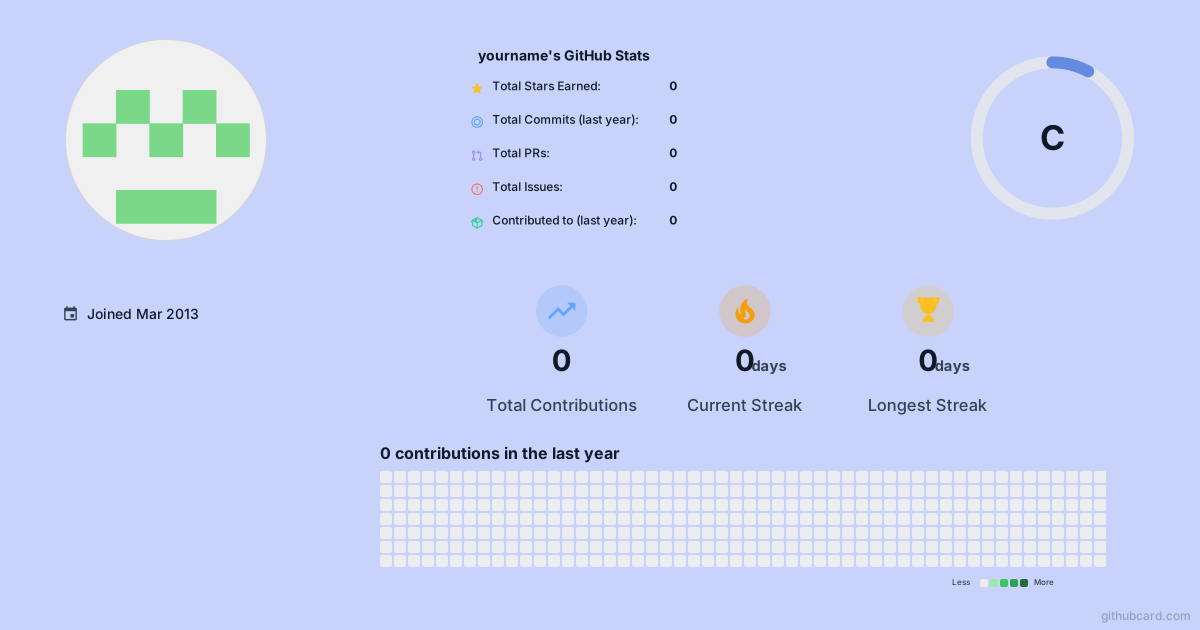
A profile card can combine your stats, languages, selected repositories, and custom text into one scannable block. This works better than stacking several unrelated widgets with mismatched colors.
Use a profile card when you want the README to feel intentionally designed without hand-writing SVG or CSS. Start with GitHubCard's profile card generator, choose the widgets that fit your story, then embed the SVG in your README.
3. A focused stats section
Stats are useful when they support a point. They are weaker when they become a scoreboard. Pick two or three metrics that help visitors understand your work: public repos, contribution activity, top languages, or open-source maintenance.
For setup options, see How to Add Stats to Your GitHub README.
4. A language and stack snapshot
Show the tools you use now, not every tool you have ever touched. A focused stack section is easier to believe and easier to scan.
Group skills by purpose:
- Product UI: React, TypeScript, Tailwind CSS
- Backend: Go, Hono, PostgreSQL
- Infrastructure: Cloudflare Workers, Docker, GitHub Actions
- Design: Figma, accessibility testing, design systems
5. Three pinned projects with context
Pinned repositories are useful, but they still need framing. Add a short section that explains why each project matters.
### Featured projects

- **Project A**: a fast dashboard for monitoring worker queues.
- **Project B**: a README card generator for developer portfolios.
- **Project C**: a small library that removes boilerplate from API clients.
If one project deserves a richer preview, make a repository card with the GitHub repo card generator.
6. A "currently building" block
This makes the profile feel alive. Keep it short and update it monthly.
Currently building:

- A better onboarding flow for GitHubCard
- A small analytics dashboard for open-source maintainers
- Notes on Cloudflare Workers performance
Avoid vague lines like "currently learning everything." Specific beats energetic.
7. A "best first issue" invitation
If you maintain open-source projects, point new contributors to the safest place to start. Link one issue label, one repository, or one contribution guide.
This is more useful than a generic "contributions welcome" badge.
8. A compact contact section
Make the next step obvious. Include only the places you actually check.
Find me here:

- Portfolio: https://example.com
- GitHub: https://github.com/yourname
- Email: hello@example.com
If you want fewer spam problems, link to a contact page instead of writing an email address directly.
9. A project roadmap
A roadmap is useful when your GitHub profile is tied to a product, library, or open-source project. It tells visitors the work is active and gives contributors a map.
Keep it high level:
- Now: stabilize exports and templates
- Next: add team profiles
- Later: add richer analytics
10. A contribution graph with restraint
Contribution graphs can make a README feel active, but they can also dominate the page. Use them below your intro, not as the whole identity.
If your work is seasonal or private, do not over-optimize around public contribution counts. Show projects, writing, talks, or shipped products too.
11. A top repositories card
A top repositories card helps visitors avoid guessing which repo matters most. It works especially well for people with many small experiments.
Choose repositories by relevance, not only stars. A polished project with a clear README may tell a stronger story than an old repo with more stars.
12. A "how I work" section
This is useful for collaborators. Describe your working style in practical terms:
- I prefer small PRs with screenshots for UI work.
- I write tests around shared logic and API contracts.
- I document trade-offs when the decision is not obvious.
This turns a profile from a trophy wall into a collaboration surface.
13. A recent writing section
If you write blog posts, docs, or technical notes, link the best ones. This is especially useful for developer advocates, founders, maintainers, and senior engineers.
Do not auto-list everything if the feed is noisy. Curate the pieces you want a visitor to read.
14. A skills grid with categories
Skill icon grids are common, but they work better when organized. Group icons by area instead of using one long row.
Frontend: React, TypeScript, CSS
Backend: Node.js, Go, PostgreSQL
DevOps: Cloudflare, Docker, GitHub Actions
This avoids the "badge soup" problem.
15. A small personal note
One personal line can make a profile more memorable. Keep it relevant and human:
- I like building tools that make creative work faster.
- I care about boring reliability and clear interfaces.
- I write notes when I learn something the hard way.
You do not need a full biography.
16. A "before you browse" guide
If your repositories vary in quality or purpose, tell visitors where to start.
If you are browsing my work:

1. Start with `project-a` for production code.
2. Open `project-b` for UI experiments.
3. Ignore old archive repos unless you enjoy archaeology.
This is honest and helpful.
17. A case study link
For important projects, link to a short case study. Explain the problem, the constraints, the decisions, and the outcome.
This helps recruiters and collaborators see judgment, not just code volume.
18. A public learning log
A learning log works when it is specific:
- Reading about distributed queues
- Rebuilding a small compiler
- Testing accessibility patterns in dense dashboards
Avoid endless "currently learning" lists. A short log with dates is more credible.
19. A sponsorship or support block
If you maintain useful tools, include a small support section. Explain what support enables: bug fixes, documentation, examples, or hosting costs.
Keep it below the main project explanation so it feels like context, not the first ask.
20. A clean dark/light mode strategy
If you embed images, check both GitHub themes. Use theme-specific image fragments when needed:

This prevents a beautiful light card from becoming unreadable in dark mode.
21. A profile card for portfolio visitors
If your README and portfolio share the same audience, use the same profile card in both places. That creates a consistent visual identity.
For website embeds, see How to Embed Your GitHub Profile on Any Website.
22. A project launch section
If you recently launched something, make the README point to it. Include the product link, the repo, a short summary, and what kind of feedback you want.
This turns passive profile traffic into useful attention.
23. A "maintenance status" note
For open-source maintainers, status matters. Mark important repos as active, stable, experimental, or archived.
This saves visitors from opening stale projects and helps contributors choose where to spend time.
24. A small FAQ
If people ask the same questions about your work, answer them once:
- Are you available for freelance work?
- Which projects are production-ready?
- Can people contribute?
- Where should they report bugs?
This is especially useful for founders and maintainers.
25. A final call to action
End with one clear next step. Examples:
- Explore my featured projects.
- Read my latest technical notes.
- Open an issue if you want to contribute.
- Contact me about product engineering work.
The README should not just impress people. It should help them move.
A simple GitHub profile README structure
If you want a clean starting point, use this order:
- One-line positioning statement.
- Profile card or focused stats card.
- Featured projects.
- Current work.
- Writing or case studies.
- Contact links.
That is enough for most profiles. Add more only when the extra section helps the visitor make a decision.
Role shortcuts for card direction
If you already know the role signal you want to send, start with a focused direction instead of a blank README:
- Infrastructure and reliability: uptime, incidents, automation, and systems scale.
- Data and research: datasets, methods, notebooks, papers, and reproducible results.
- Mobile and product engineering: shipped apps, platform depth, and product constraints.
- Systems and tooling: languages, CLIs, performance work, and contributor workflows.
- Visual and interactive work: demos, motion, UI polish, and project previews.
- Personal and lightweight profiles: current focus, selected links, and one strong proof point.
Build the visual pieces
The fastest way to apply these ideas is to design one strong visual card, then support it with a few focused text sections.
Start with the GitHub profile card generator for your profile README. If you want to highlight one repository, use the GitHub repo card generator. If you are comparing stats widgets, read GitHub README Stats Alternatives.
FAQ
What should I put in my GitHub profile README?
Start with a clear one-line intro, a focused profile or stats card, three featured projects, current work, writing or case studies, and contact links.
How long should a GitHub profile README be?
Most profiles work best when the first screen is concise. Add depth below the fold, but keep the top section focused on identity, proof, and next steps.
Are GitHub stats cards worth adding?
Stats cards are useful when they support your story. Use them to show activity, languages, or repository focus, not as a scoreboard.
How do I make my GitHub profile README stand out?
Choose fewer, stronger sections. Combine a useful intro, curated projects, a visual profile card, and a clear call to action instead of stacking badges.
Turn this into a card
Turn the ideas from this article into an editable GitHub profile card, repo card, or README section.