How to Add Stats to Your GitHub README
A GitHub profile README works like a small developer homepage. Good stats make it easier for visitors to understand what you build, which languages you use, and whether your projects are active.
There are three practical ways to add GitHub stats to your README:
- Use a visual designer and export a card.
- Embed a live SVG stats API.
- Build your own workflow with GitHub Actions.
This guide walks through each path, with Markdown examples you can paste into your profile README.
Before you start: create or open your profile README
GitHub profile READMEs live in a special repository. The repository name must
match your GitHub username exactly. If your username is octocat, the repo is
also named octocat.
Inside that repository, edit README.md. Anything you add there can appear on
your public GitHub profile.
What can go on a GitHub stats card?
Most profile stats cards show a mix of:
- Public repositories
- Stars and forks
- Followers and following
- Contribution streaks
- Top languages
- Pull requests, issues, and reviews
- Contribution graphs or activity charts
- Featured repositories
You do not need every metric. A good README card should support the story you want to tell. A job-seeking profile might emphasize languages and polished projects. An open-source maintainer might emphasize star history, contributors, and repo activity.
Option 1: use a visual GitHub profile card designer
The easiest path is to use a visual designer such as GitHubCard. This avoids editing long URL parameter strings and gives you control over the final layout.
Steps
- Open the GitHub profile card generator.
- Enter your GitHub username.
- Choose widgets such as stats, languages, streaks, activity graphs, or top repositories.
- Arrange the widgets on the canvas.
- Export or publish the card.
- Paste the SVG link into your profile README.
Markdown example
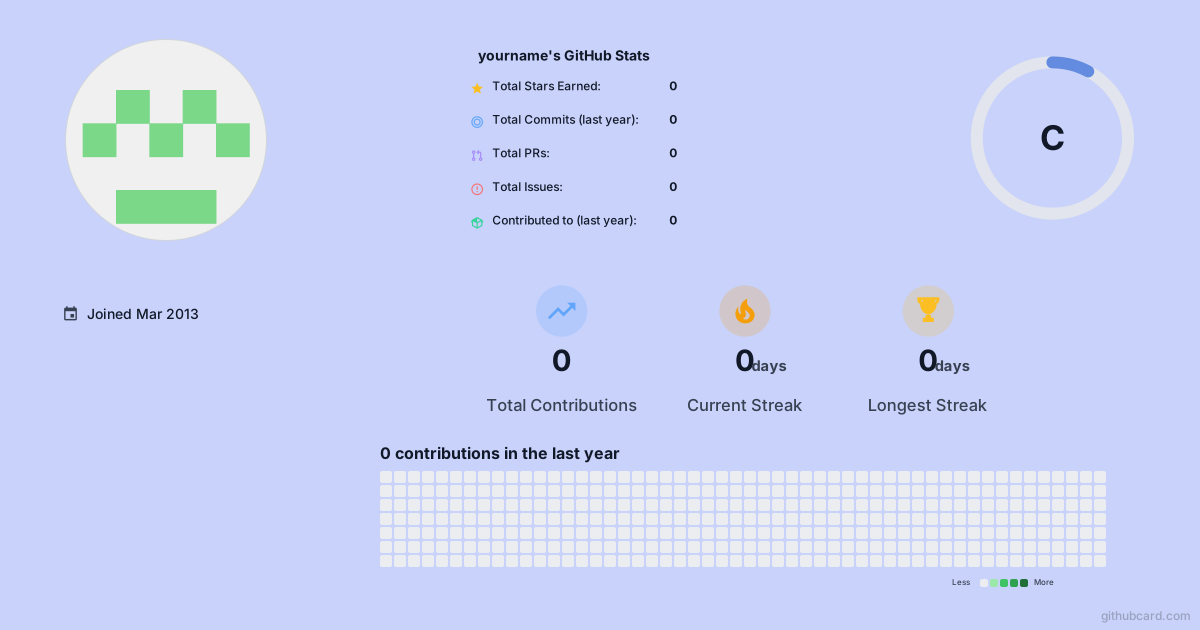
If you publish a fixed design, use the stable published URL:

When this option is best
Use a designer when you care about composition, not just numbers. It is the best option for portfolio READMEs, personal websites, blog pages, and profiles where you want the card to look distinct.
Option 2: embed an SVG stats API
The classic approach is to use an SVG API such as
github-readme-stats.
These tools return an image when GitHub loads your Markdown.
Markdown example

You can add a language card too:

When this option is best
Use an SVG API when you are comfortable editing Markdown and query parameters. It is fast, familiar, and easy to copy from other READMEs.
Trade-offs
The trade-off is layout control. You can change parameters, but you are still working inside the card shapes and options the API provides. If many profiles use the same service, the result can also feel familiar.
For a broader comparison, see GitHub README Stats Alternatives.
Option 3: build your own stats workflow
If you want total control, you can create a GitHub Actions workflow that fetches data from the GitHub API, renders Markdown or SVG, and commits the result back to your README repository.
This gives you the most flexibility, but it also creates maintenance work. You own the API calls, rate limits, templates, tokens, and schedule.
Minimal workflow shape
name: Update README stats

on:
  schedule:
    - cron: "0 6 * * *"
  workflow_dispatch:

jobs:
  update:
    runs-on: ubuntu-latest
    steps:
      - uses: actions/checkout@v4
      - uses: actions/setup-node@v4
        with:
          node-version: 22
      - run: node scripts/update-readme-stats.js
      - run: |
          git config user.name "github-actions[bot]"
          git config user.email "github-actions[bot]@users.noreply.github.com"
          git add README.md
          git commit -m "chore: update readme stats" || exit 0
          git push
When this option is best
Use a custom workflow if you have unusual data, a strict brand system, or a reason to fully own the rendering pipeline.
How to place stats in your README
You can place stats anywhere in README.md, but the top half of the README is
usually the most valuable space. Keep the first screen readable.
Simple centered card
<p align="center">
  <img src="https://githubcard.com/yourname.svg" alt="GitHub profile stats" />
</p>
Two cards side by side
<p align="center">
  <img src="https://githubcard.com/yourname.svg" alt="GitHub profile card" width="49%" />
  <img src="https://github-readme-stats.vercel.app/api/top-langs/?username=yourname&layout=compact" alt="Top languages" width="49%" />
</p>
Dark and light mode
GitHub supports theme-specific fragments for Markdown images:
Use this when your light and dark cards need different backgrounds or contrast.
Troubleshooting
The card does not show up
Check that the image URL opens in a browser. If it does not, the problem is the image endpoint rather than your README Markdown.
The username is wrong
Use your GitHub username, not your display name. GitHub usernames are case insensitive in most places, but matching the exact handle avoids confusion.
The stats look stale
Many image services cache GitHub data for performance. Wait for the cache to refresh, or use a published snapshot when you need a stable fixed image.
The card is too wide on mobile
Avoid fixed pixel widths when possible. In HTML embeds, use percentage widths or let the image scale naturally.
Private repo stats are missing
Most public README cards only use public data unless you authorize additional access. If private contribution data matters, choose a tool that supports the permissions you need.
FAQ
What is the easiest way to add GitHub stats to a README?
The easiest way is to use a visual generator such as GitHubCard or copy an SVG stats API snippet. A visual generator gives you more design control; an SVG API is faster if you only need a default card.
Do GitHub README stats update automatically?
Live SVG cards usually update automatically with caching. PNG exports are fixed snapshots unless you regenerate them.
Can I add stats to a project README instead of my profile README?
Yes. The same Markdown image syntax works in project READMEs, documentation, portfolio pages, and blog posts.
For project-specific embeds, see How to Embed a GitHub Repository on Any Website.
Should I use SVG or PNG?
Use SVG for GitHub READMEs because it stays crisp and usually has a smaller file size. Use PNG for platforms where SVG previews are unreliable.
Skip the config and design the card
If you want a polished stats card without editing query strings, start with the free GitHub profile card generator. You can also build repository cards with the GitHub repo card generator.
Turn this into a card
Turn the ideas from this article into an editable GitHub profile card, repo card, or README section.