How to Embed Your GitHub Profile on Any Website
Your GitHub profile should not live only on GitHub. If you have a portfolio, personal site, agency page, documentation site, course bio, or open-source landing page, a GitHub profile card gives visitors a quick signal: what you build, which languages you use, and where they can verify the work.
There are three practical ways to embed a GitHub profile on a website:
- Use an SVG image embed.
- Use an iframe widget.
- Build or reuse a React component.
The right choice depends on where the embed will live. A static portfolio has different constraints from a React app, a Webflow page, or a Notion document. This guide shows the trade-offs and gives you copy-paste examples for each method.
Method 1: embed an SVG profile card
For most websites, an SVG image is the easiest and most reliable option. It is just an image URL, so it works in HTML, Markdown, React, Astro, Next.js, WordPress, Webflow, Framer, Notion, and most website builders.
Start by creating a card with the GitHub profile card generator. Add the widgets you want, then publish or export the SVG.
HTML example
<a href="https://github.com/yourname">
  <img
    src="https://githubcard.com/yourname.svg"
    alt="GitHub profile card for yourname"
    width="720"
    height="360"
    loading="lazy"
  />
</a>
Use a real width and height so the browser can reserve space before the image loads. That helps prevent layout shift, which matters for both user experience and Core Web Vitals.
Markdown example
[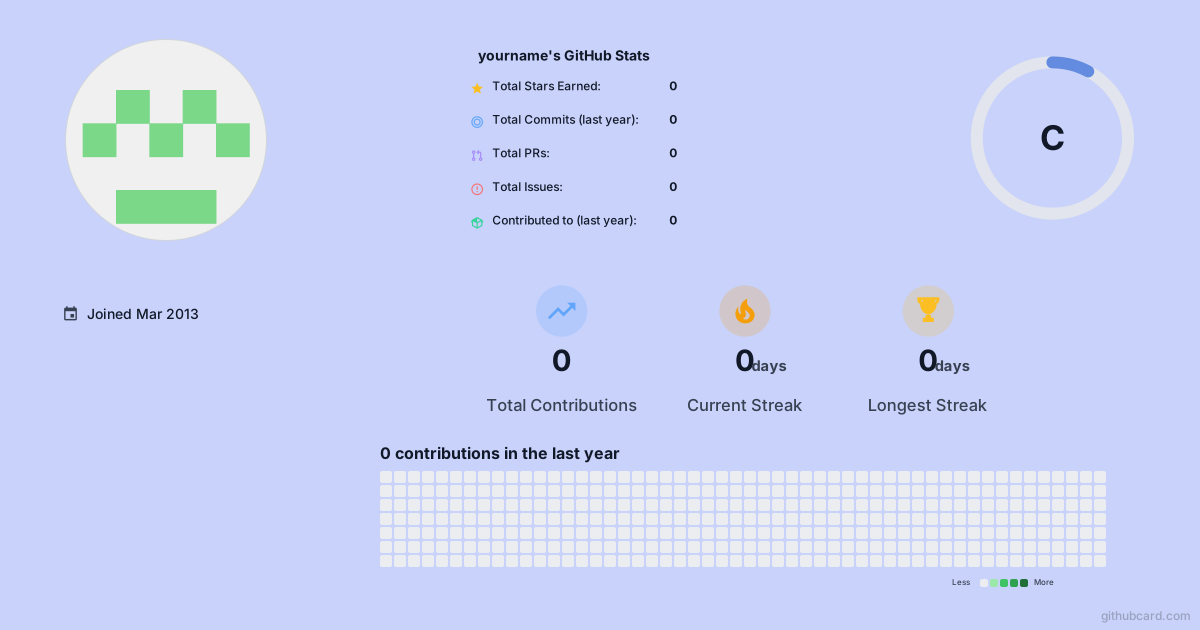](https://github.com/yourname)
Markdown is useful for GitHub READMEs, documentation pages, Astro content collections, MDX blogs, and static site generators.
Responsive CSS
.github-profile-card {
  display: block;
  width: 100%;
  max-width: 720px;
  height: auto;
}
Then apply it:
<img
  class="github-profile-card"
  src="https://githubcard.com/yourname.svg"
  alt="GitHub profile card for yourname"
/>
When SVG is best
Choose SVG when you want a lightweight profile widget that can appear on a portfolio homepage, "About" page, blog sidebar, speaker bio, or open-source project page. It is also the best default for GitHub READMEs because it stays sharp on high-density screens.
If you need a project-specific card instead of a profile card, use the GitHub repo card generator and embed the repository card the same way.
Method 2: embed an iframe widget
An iframe is useful when you need a self-contained widget. It can keep its own styling, scripts, and links separate from the rest of the page.
This pattern is common for social widgets, code previews, forms, and third-party cards. Use it when you want the card to behave like a mini page rather than a static image.
iframe example
<iframe
  src="https://githubcard.com/yourname/card"
  title="GitHub profile card for yourname"
  width="720"
  height="360"
  loading="lazy"
  style="border:0;max-width:100%;"
></iframe>
If your iframe content has a fixed aspect ratio, wrap it in a responsive box:
<div class="github-card-frame">
  <iframe
    src="https://githubcard.com/yourname/card"
    title="GitHub profile card for yourname"
    loading="lazy"
  ></iframe>
</div>
.github-card-frame {
  aspect-ratio: 2 / 1;
  max-width: 720px;
  width: 100%;
}

.github-card-frame iframe {
  width: 100%;
  height: 100%;
  border: 0;
}
When iframe is best
Use an iframe when the card needs interaction, its own navigation, or isolation from the parent page. For a simple portfolio badge, SVG is usually cleaner. For a richer GitHub widget, iframe can be the better boundary.
Method 3: embed a React component
If your website is already a React app, you may prefer a component wrapper. It lets you control loading state, fallback UI, links, props, and layout in one place.
Simple React image component
type GitHubProfileCardProps = {
  username: string;
  width?: number;
};

export function GitHubProfileCard({
  username,
  width = 720,
}: GitHubProfileCardProps) {
  const profileUrl = `https://github.com/${username}`;
  const imageUrl = `https://githubcard.com/${username}.svg`;

  return (
    <a href={profileUrl} aria-label={`Open ${username} on GitHub`}>
      <img
        src={imageUrl}
        alt={`GitHub profile card for ${username}`}
        width={width}
        height={Math.round(width / 2)}
        loading="lazy"
        style={{ maxWidth: '100%', height: 'auto' }}
      />
    </a>
  );
}
Then use it in a portfolio page:
<GitHubProfileCard username="yourname" />
React iframe component
type GitHubProfileFrameProps = {
  username: string;
};

export function GitHubProfileFrame({ username }: GitHubProfileFrameProps) {
  return (
    <iframe
      src={`https://githubcard.com/${username}/card`}
      title={`GitHub profile card for ${username}`}
      loading="lazy"
      style={{
        width: '100%',
        maxWidth: 720,
        aspectRatio: '2 / 1',
        border: 0,
      }}
    />
  );
}
When React is best
Use a component when the GitHub card is part of a design system. It is also the cleanest path when you want one reusable profile card across a homepage, resume page, author bio, and case study layout.
Which embed method should you choose?
Use this quick rule:
| Website type | Best method | Why |
|---|---|---|
| GitHub README | SVG or Markdown image | Native GitHub support |
| Static portfolio | SVG image | Fast and simple |
| Next.js, Remix, Astro, or React app | React component wrapping SVG | Reusable and typed |
| Webflow or Framer | SVG image or iframe | Easy paste into embed blocks |
| Notion or docs tools | SVG or PNG link | Most portable |
| Interactive widget | iframe | Isolated behavior |
For most people, start with SVG. Move to iframe only when you need widget behavior. Move to React when you want component-level control.
Platform notes
Next.js and React apps
Use a normal img tag when the SVG is remote and already optimized. If your
framework requires image domain allowlists, keep the embed simple or add
githubcard.com to the remote image configuration.
Astro and static site generators
Place the Markdown snippet in content files or use HTML in a component. Static sites are a strong fit for SVG embeds because the page can stay fast while the card updates independently.
Webflow and Framer
Use an Embed block for the HTML image snippet. Keep the width responsive and avoid fixed pixel sizes on mobile breakpoints.
Notion
Use the image URL directly, or upload a PNG export if your Notion page needs a stable snapshot. SVG support can vary across preview contexts, so PNG is often the safer presentation format.
Performance and accessibility checklist
Before publishing, check these details:
- Add meaningful
alttext for image embeds. - Add a descriptive
titlefor iframe embeds. - Define width and height, or use
aspect-ratio. - Lazy-load cards below the first viewport.
- Link the card to your GitHub profile or repository.
- Keep the first viewport focused if the card is decorative.
- Use SVG for crisp rendering and PNG for platforms with unreliable SVG previews.
If the card is the main proof point on your portfolio page, do not hide it in a crowded badge wall. Give it enough space, then link to the repositories that support the story.
FAQ
What is the easiest way to embed a GitHub profile on a website?
The easiest method is to export or publish an SVG profile card, then embed it with a normal image tag. It works in static HTML, React, Next.js, Astro, Webflow, Framer, Notion, and most CMS editors.
Should I use SVG, PNG, iframe, or a React component?
Use SVG for most websites and READMEs, PNG for platforms with unreliable SVG previews, iframe when you need an interactive widget, and a React component when you want full control inside your app.
Can I embed a GitHub repository instead of a profile?
Yes. Use the same pattern with a repository card. A repo card is better for project pages, launch posts, documentation, and portfolio case studies.
Will an embedded GitHub card slow down my site?
It should not if you define image dimensions, lazy-load below-the-fold cards, and use cached SVG or PNG assets. Avoid loading several live widgets in the first viewport.
Design the card first, then embed it
The embed code is the easy part. The harder part is making the card worth embedding. Start with the GitHub profile card generator, choose the stats and projects that support your story, then paste the embed into your portfolio, README, or website.
For project pages, use the GitHub repo card generator. For profile README stats specifically, see How to Add Stats to Your GitHub README.
Turn this into a card
Turn the ideas from this article into an editable GitHub profile card, repo card, or README section.